Topology View
A visual diagram of your GPU interconnect topology, showing how GPUs are connected via PCIe, NVLink, or the unified memory architecture on Apple Silicon.
Press g from any view to enter Topology mode.
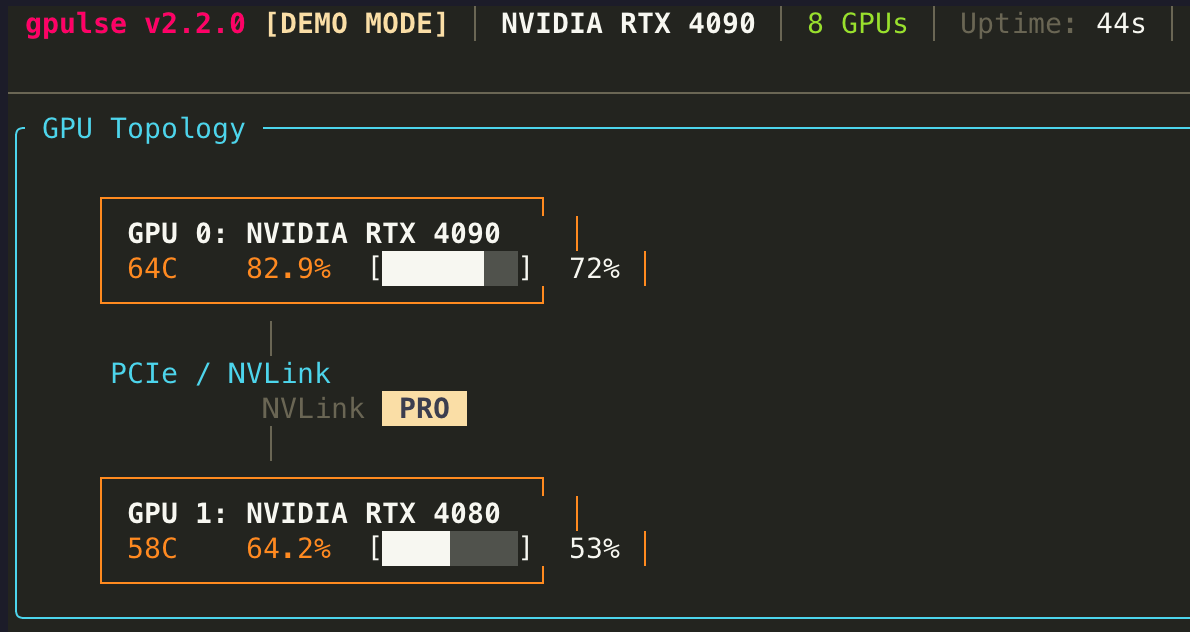
What You See
Topology view renders a tree or graph diagram showing:
- GPU Nodes — each GPU represented as a box with its index, model name, and current VRAM usage
- Bus Connections — lines between GPUs showing the interconnect type (PCIe, NVLink, NVSwitch, Apple Unified Memory)
- PCIe Root Complex — the CPU or IOH node that GPUs connect through
- Link Bandwidth — theoretical bandwidth of each link (e.g., PCIe 4.0 x16 = 32 GB/s)
- NUMA Node — which CPU socket each GPU is closest to (on multi-socket systems)
Interconnect Types
PCIe
Standard bus for connecting GPUs. Common configurations: PCIe 3.0 x16 (16 GB/s), PCIe 4.0 x16 (32 GB/s), PCIe 5.0 x16 (64 GB/s). P2P transfers between GPUs on the same root complex are faster than those crossing CPU sockets.
NVLink
NVIDIA's high-bandwidth GPU-to-GPU link. NVLink 3.0 provides 600 GB/s bidirectional per link. Used in DGX systems, A100, H100, and other data center GPUs. Enables much faster multi-GPU communication than PCIe.
Apple Unified Memory
On Apple Silicon, the GPU and CPU share the same memory pool. There is no discrete GPU bus — the "interconnect" is the unified memory architecture itself, with bandwidth determined by the SoC (e.g., M4 Max = 546 GB/s).
Why Topology Matters
Understanding GPU topology is critical for:
- Multi-GPU Training — frameworks like PyTorch and DeepSpeed can optimize communication patterns based on topology. GPUs connected via NVLink should be grouped together.
- NUMA Awareness — for best performance, allocate CPU memory on the same NUMA node as the GPU. Topology view shows which socket each GPU belongs to.
- Debugging Slow All-Reduce — if gradient synchronization is slow, check whether your GPUs are on separate root complexes or crossing QPI links.
Keyboard Shortcuts
| Key | Action |
|---|---|
| Tab / Shift+Tab | Select next / previous GPU node |
| d | Open selected GPU in Detail view |
| v | Return to Grid view |
When to Use Topology View
Use Topology view when setting up a new multi-GPU machine, debugging communication bottlenecks in distributed training, or verifying hardware configuration after changes. It is read-only and does not require any active workload.