Detail View
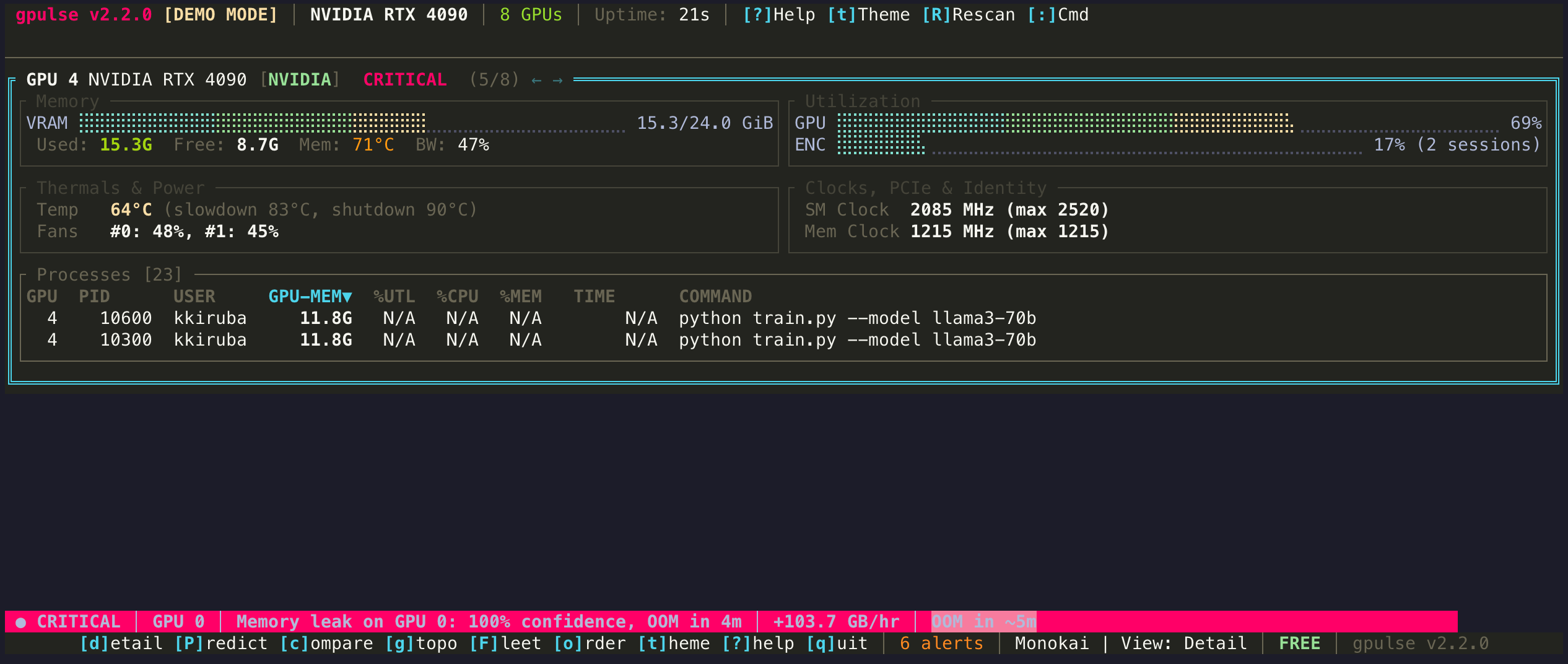
A focused deep dive into a single GPU. Shows full metrics, a memory usage history graph, and a complete process table with extended columns.
Press d from any view to enter Detail mode for the currently selected GPU.
What You See
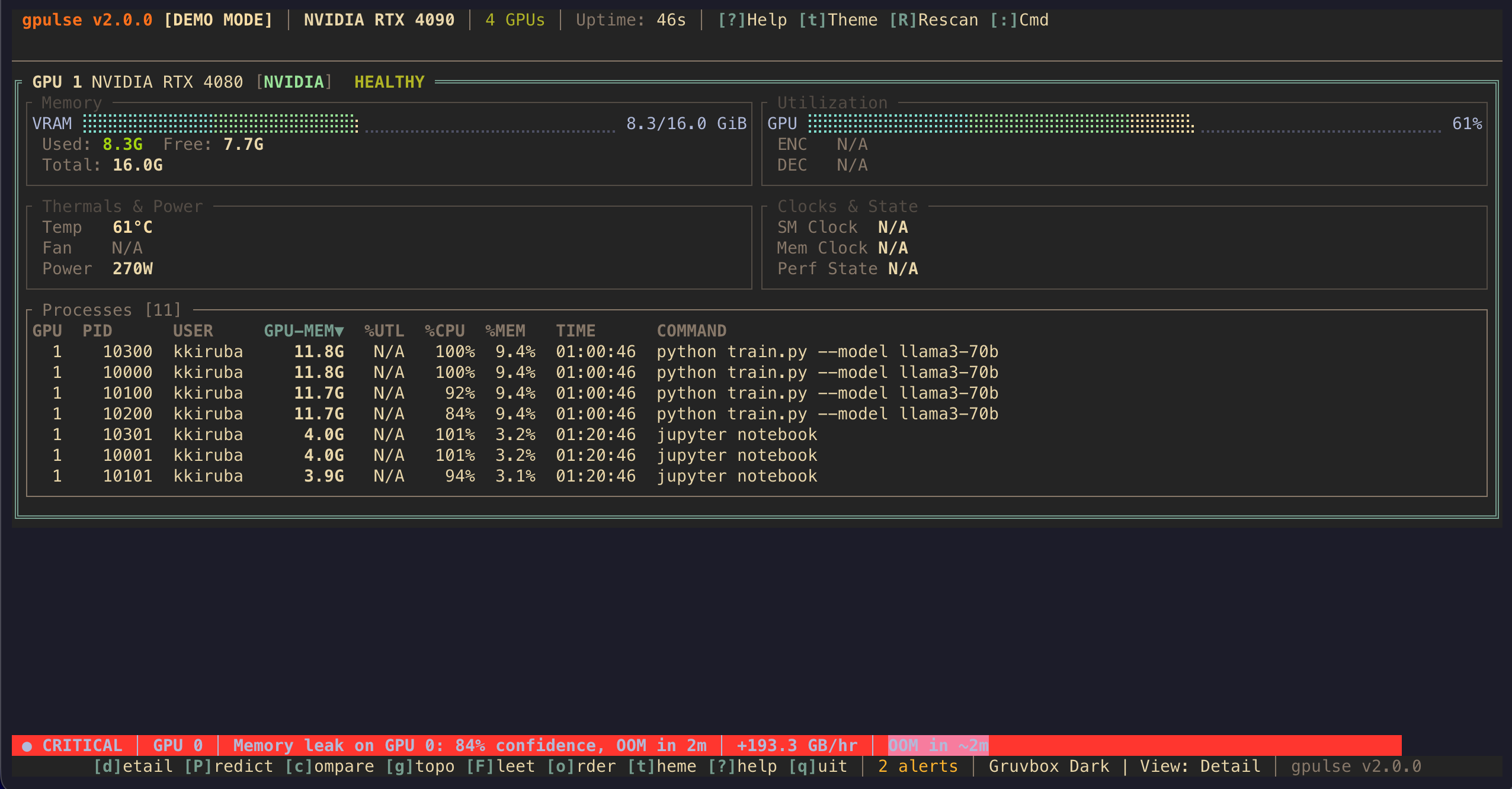
Detail view dedicates the full terminal to one GPU, giving you more space for:
- GPU Header — model name, driver version, CUDA version, vendor, architecture
- VRAM Bar — large visual bar with exact usage in GB and percentage
- Metrics Panel — GPU utilization, memory bandwidth utilization, temperature, fan speed, power draw, clock speeds (core + memory)
- Memory History Graph — sparkline or mini chart showing VRAM usage over time
- Process Table — full-width table with PID, name, type, GPU memory, GPU utilization, CPU utilization, uptime
Metrics Explained
Memory Bandwidth Utilization
Percentage of the GPU's memory bus capacity being used. High bandwidth utilization alongside high compute utilization may indicate a memory-bound workload.
Fan Speed
Current fan speed as a percentage of maximum RPM. Only available on discrete GPUs with active cooling (not applicable to Apple Silicon).
Clock Speeds
Current core clock and memory clock in MHz. Lower-than-expected clocks may indicate thermal throttling or power limits being hit.
Process Type
Whether the process is using the GPU for compute (C), graphics (G), or both (C+G). Training workloads typically show as compute-only.
Keyboard Shortcuts
| Key | Action |
|---|---|
| Tab / Shift+Tab | Switch to next / previous GPU |
| 1-8 | Jump to GPU by index |
| s | Cycle sort column in process table |
| f | Filter processes |
| Enter | Open process details modal |
| K | Kill selected process |
| v | Return to Grid view |
| Esc | Close process details modal / return to previous view |
When to Use Detail View
Use Detail view when you need to investigate a specific GPU — for example, when Grid view shows a critical memory warning and you want to see exactly which processes are consuming VRAM. It is also useful for monitoring a single-GPU machine where the Grid layout is unnecessary.